

Bloatware is the name for apps that come pre-installed on Android phones. These apps can take up space, use battery, and may not be useful. Some apps can be removed or turned off in the settings. But system apps often need extra steps to remove. This guide shows how to disable bloatware on Android. It covers both built-in and third-party apps.
Understanding Bloatware on Android
What is Bloatware?
Bloatware is the name for apps that come pre-installed on Android phones. Phone makers or carriers add these apps. Some try to help users. Others may just promote services. Many users find them unnecessary.
Types of Bloatware
- System Apps: These apps are part of the phone. You cannot uninstall them in regular settings. Examples are Google Play Store, Samsung Max, and ColorOS Browser.
- Third-Party Apps: These apps come from the maker or carrier. You can often uninstall or turn them off in the settings.
Methods to Disable Bloatware
1. Using Device Settings
For Third-Party Apps:
- Navigate to Settings > Apps.
- Select the app you wish to disable.
- Tap Disable.
This method prevents the app from running and removes it from the app drawer.
For System Apps:
System apps cannot be uninstalled through settings. However, you can disable them:
- Go to Settings > Apps.
- Select the system app.
- Tap Disable.
Disabling a system app may affect the functionality of other apps or the system itself. Proceed with caution.
2. Using ADB (Android Debug Bridge)
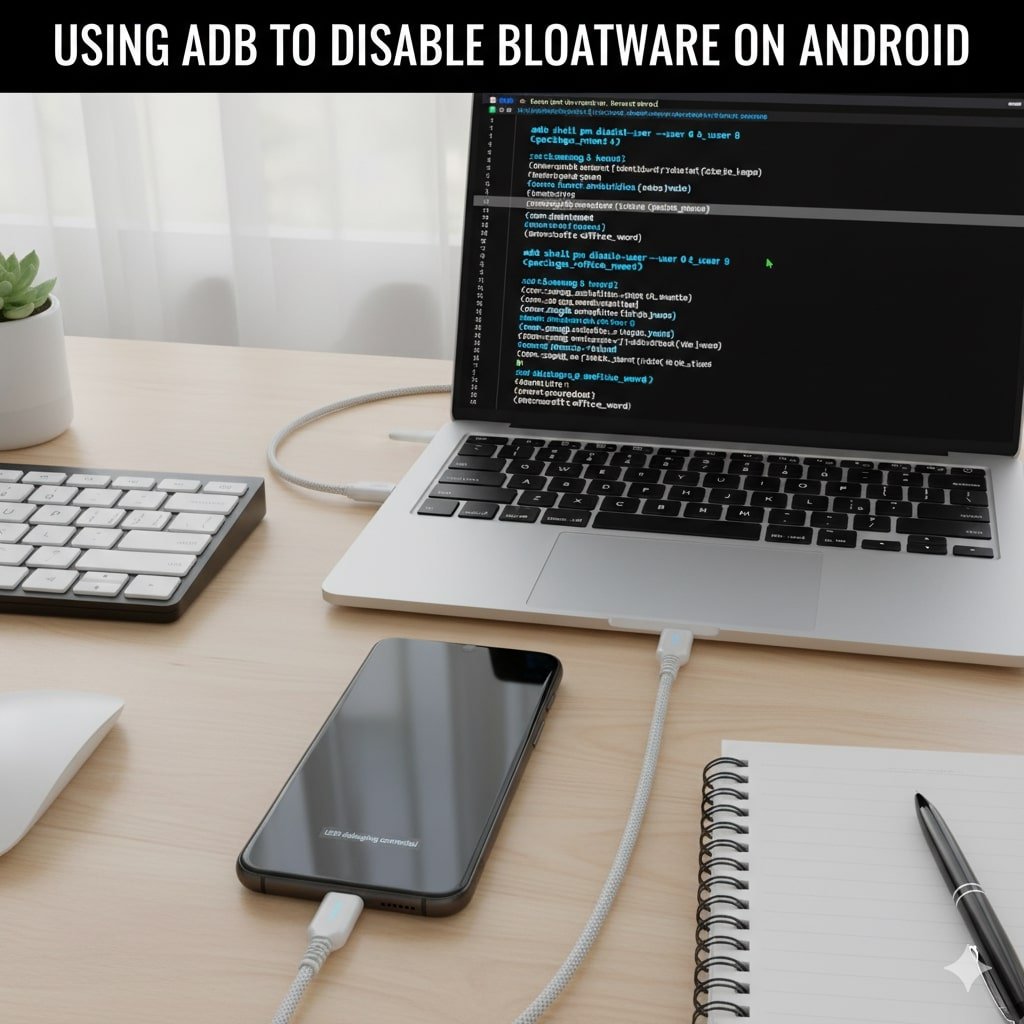
Preparation:
- Enable Developer Options by going to Settings > About phone and tapping Build number seven times.
- Enable USB Debugging in Settings > Developer options.
- Install ADB on your computer.
Steps:
- Connect your Android device to the computer via USB.
- Open a command prompt or terminal window.
- Type
adb devicesto ensure your device is recognized. - To disable an app, use the command:
adb shell pm disable-user --user 0 <package_name>Replace<package_name>with the app’s package name. - To re-enable an app, use:
adb shell pm enable <package_name>
Be cautious when disabling system apps, as it may lead to unintended consequences.
3. Using Universal Android Debloater
The Universal Android Debloater is an open-source tool that provides a graphical interface to disable or remove bloatware without rooting your device.
Features:
- Cross-platform support (Windows, macOS, Linux).
- No root access required.
- Categorizes apps by risk level (Recommended, Advanced, Expert, Unsafe).
Usage:
- Download and install the Universal Android Debloater.
- Connect your Android device to the computer via USB.
- Launch the application and follow the on-screen instructions to disable or remove unwanted apps.
This tool simplifies the process of managing bloatware and is suitable for users who prefer a user-friendly interface.
Table summarizing the key aspects of disabling bloatware on Android:
| Topic | Description | Tools / Methods | Examples / Notes |
|---|---|---|---|
| Bloatware | Unnecessary pre-installed apps on Android devices that consume storage, battery, or resources. | Settings, ADB, Universal Android Debloater | Apps like ColorOS Browser, Samsung Max |
| System Apps | Subcategory of bloatware; essential apps that cannot be uninstalled natively. | Disable via Settings, ADB, UAD | Google Play Store, AR Zone |
| Third-Party Apps | Manufacturer or carrier-installed apps that can often be uninstalled easily. | Settings | Oppo Roaming App, FinchPay |
| Developer Options & USB Debugging | Required Android features to enable advanced app removal using ADB. | Settings > Developer Options | Enable USB Debugging to connect device to PC |
| ADB (Android Debug Bridge) | Command-line tool to manage apps and device features from a computer. | Terminal / Command Prompt | adb shell pm disable-user --user 0 <package_name> |
| Universal Android Debloater (UAD) | Open-source tool with GUI for safely disabling or removing system apps. | Windows, macOS, Linux | Categorizes apps by risk: Recommended, Advanced, Expert, Unsafe |
| Android Phone Manufacturers | Brands that may include significant bloatware. | N/A | Oppo, Samsung, Xiaomi, Realme, Vivo |
| Storage Optimization | Benefit of removing bloatware: frees up memory and improves performance. | Settings, ADB, UAD | Galaxy F23: 3.21 GB → 2.21 GB free after debloating |
Risks and Considerations
- System Stability: Disabling or removing certain system apps can affect the stability and functionality of your device.
- Updates: Some apps may reappear after system updates.
- Warranty: Modifying system apps may void your device’s warranty.
- Data Loss: Improper handling can lead to data loss or device malfunction.
Always ensure you understand the implications of disabling or removing apps before proceeding.
Conclusion
Turning off bloatware on Android can make your phone faster. It can also free up storage and save battery. Basic settings let you remove some apps. For system apps, tools like ADB or Universal Android Debloater give more control. Be careful and make sure to back up your data before making changes.
Author Bio
Sajeb is a tech enthusiast with over 10 years of experience in Android device management and customization. With a background in software development, Sajeb provides insights and tutorials to help users optimize their devices.
References
